
Open Magic Post Thumbnail → Automatic. This page has three tabs: Image Placement, Post-Processing Image, and Pre-Processing & Developer. There is no Posts tab. Style lives in Image Placement (not as its own tab).

Image Placement #
This tab configures every image that will be inserted into your posts.
- Free version: one image location per post.
- Pro: click [+] Add an image location to add as many locations as you need. Use [-] Delete to remove a block.
Featured Image / Inline Content #
Where the generated image appears:
- Featured Image (default) — WordPress featured image.
- Inline content — insert the image anywhere in the post. Description: “Inline content” allows you to generate the image anywhere in the content.
- With compatibility enabled (Pro): FIFU plugin (Featured Image from URL), CMB2 Field, ACF Field, Meta Box Field. For CMB2 / ACF / Meta Box, fill in Field Name.
When Inline content is selected:
- Image position — Insert Before or After the First … Tenth or Last paragraph (p), h2–h6, div, or link (a).
- Image size — WordPress image size (thumbnail, medium, large, full, and any custom sizes).
Image Source #
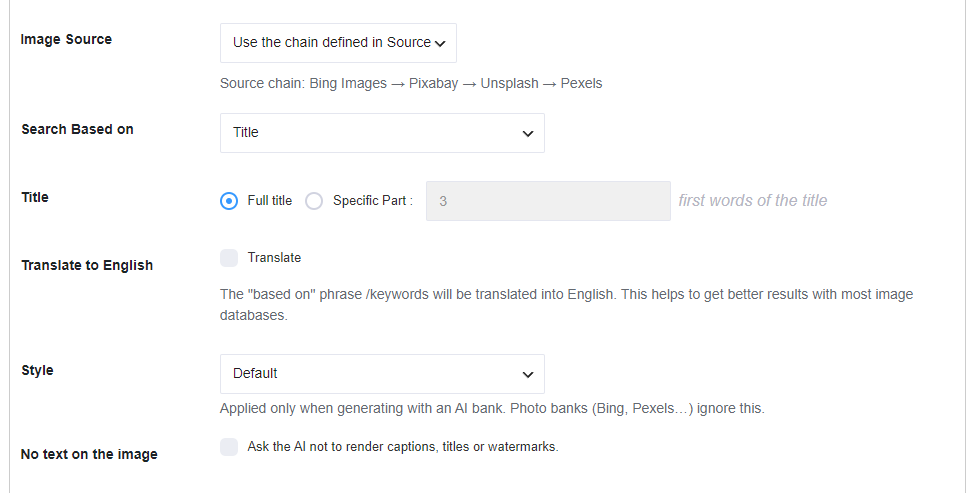
Default: Use the chain defined in Source. Generation then follows the order saved on the Source page (for example Bing Images → Openverse → Default image). A reminder under the dropdown shows the current chain: “Source chain: …”
You can instead force a single bank for this location (Bing Images, GPT Image, Openverse, and so on). Pro banks are disabled on the free version.
Search Based on #
This is the keyword sent to photo banks, and the {search} term inside AI prompts. Options:
- Title — Full title or Specific Part: the first X first words of the title. Long titles can return poor results on banks such as Pixabay or Unsplash.
- Text Analyzer: Full text — extracts keywords from the whole post. Set Post Content Language.
- Text Analyzer: Previous paragraph — only with Inline content. Keywords from the paragraph before the image.
- Text Analyzer: Next paragraph — only with Inline content. Keywords from the paragraph after the image.
- Tags (Pro) — First tag, Last tag, or Random tag.
- Categories (Pro) — First category, Last category, or Random category.
- Custom Field (Pro) — value of Custom field Name.
- Custom Request (Pro) — your own query. Drag tokens Title, Category, Tag, Taxonomy into the request (for example “This is a simple request including the %%Title%%”). Also set Category Level (Child / Parent / Grandparent category), Taxonomy Slug, and Taxonomy Level. Custom Request is the keyword, not the visual style — see AI style and custom prompts.
- OpenAI Keyword Extractor (Pro) — extracts keywords from the title. Fill in OpenAI API Key and Number of keywords to extract from title: From 1 to 2 words, 2 words, or 3 words.
Translate to English — checkbox Translate. “The “based on” phrase /keywords will be translated into English. This helps to get better results with most image databases.”
Style #
Style is in Image Placement, not a separate tab. It is applied only when generating with an AI bank. Photo banks (Bing, Pexels…) ignore this.
- Default
- Photorealistic
- Illustration
- Oil painting
- Watercolor
- Cinematic
- 3D render
- Minimal
- Anime
- Custom
Custom style appears when Style is Custom. Placeholder: “e.g. editorial product shot, soft daylight”. Description: “Extra instructions appended to the AI prompt.”
No text on the image — “Ask the AI not to render captions, titles or watermarks.”
AI banks: GPT Image, Stable Diffusion, Replicate, Ideogram, Flux 2, Gemini (Nano Banana), Grok. Details: AI style and custom prompts.
Image Selection #
- First result
- Random result — useful when many posts share the same Based on value (for example the same category).
Post-Processing Image #

- Image Naming Convention — filename in the Media Library: Title, Date, or Random number.
- Overwrite featured images — checkbox Overwrite. Warning: This option will overwrite existing featured images.
- Image reuse — checkbox Enable. Check for existing images media before downloading new ones to prevent duplicates and save storage space. Reuse is based on filename.
- Image Modifications (Pro) — Flip horizontally (text on the image will read backwards) and Crop Image by 10% (trim 10% from the edges).
- Brand overlay — Disabled (default), Title bar, or Title and logo. “Draws a bar with the post title on the generated image. Disabled by default.”
- Overlay look (when Title bar or Title and logo): Bar color, Bar opacity (%), Text color, and checkbox Also show the first category.
- Overlay logo (when Title and logo): Select logo / Remove.
- Add ALT Attribute to Image (Pro) — then Alt Text from: Source or Text “based_on”. ALT Text Translation: Translate alt text from english to a language. See why alt text matters.
- Add caption tag on image — then Caption Format: Image Author, or Image Author + Name of Image Bank (example: Author Name from Pixabay).
Pre-Processing & Developer #
Enable the “save_post” & “wp_insert_post” hook. Every time you create or update a post, an image will be generated. Warning: Use it precautionary. If you don’t understand what it is, disable it.
- “Save Post” Hook — then “Save Post” Hook post type with Select all and each public post type that supports thumbnails.
- “WP Insert Post” Hook (Pro) — then “WP Insert Post” Hook post type.
- Strict Search Mode (Pro) — quotation marks are added to the search term. Warning: This may drastically reduce the number of results.
- Interval — pause between generations so Bing Images (and other remote banks) are less likely to rate-limit your server. Slider from No interval up to a few generations per minute or per hour (for example 3 / 2 / 1 per minute, or 30 / 15 / 6 / 1 per hour). Use 1 or 2 per minute if you generate in bulk against Bing Images.
Click the large Save button at the bottom of the page after changes.


