
Google Image (API) searches Google Images through Programmable Search Engine (Custom Search JSON API). You must provide your own Search engine ID and API key.
It is not the default source anymore. In version 7 the default photo bank is Bing Images (no key required). Keep Google Image (API) in the chain only if you want Google results and you have a working CSE + key.
Free. Available on the Free plan.
Source badge: Photos.
Gutenberg: not available as a block search tab. Photo-bank tabs in Gutenberg are Openverse, Flickr, Pixabay, and (Pro) YouTube, Unsplash and Pexels. Google Image (API) and AI generators are Source / automatic generation only.
Open the bank in Source #
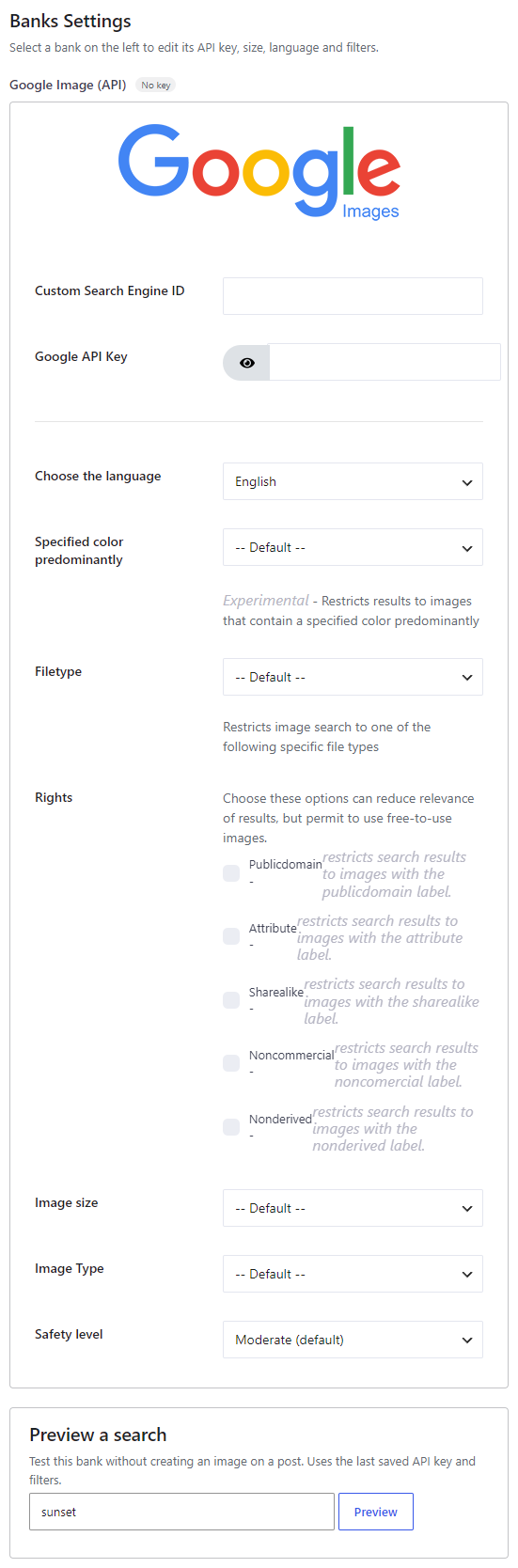
In version 7, banks are configured from Magic Post Thumbnail → Source. Click the bank in the left column (or tick it to add it to the chain), then click Configure. The Banks Settings panel opens on the right. Save when you are done.
The left column is the Automatic generation chain used by the editor button, bulk generation, cron and imports. Drag to set priority: the first bank is tried first. Unchecked banks sit below the chain.
Get a Search engine ID and API key #
Both values are required. Follow Google’s Custom Search JSON API prerequisites.
- In Google Cloud Console → Credentials, create an API key.
- Open Library, find Custom Search API, and enable it.
- Create a search engine at Programmable Search Engine. Give it a name.
- Edit the engine. Under Sites to search, remove the default site. If you leave your own domain there, results are limited to that site instead of the whole web.
- Copy the Search engine ID and paste it into the plugin together with the API key.
There is no “API testing” button on this panel. After Save, the key badge on Source shows Ready / No key / Untested / Key OK / Key failed.
Options #
- Custom Search Engine ID — CSE identifier (
cx). - Google API Key — Custom Search API key.
- Choose the language — many languages; English is the default.
- Specified color predominantly (experimental) — Default, or Black, Blue, Brown, Gray, Green, Pink, Purple, Teal, White, Yellow.
- Filetype — Default, jpg, png, gif, bmp, webp.
- Rights — optional license filters (cumulative). Choosing them can reduce relevance but helps restrict results to free-to-use images:
- Publicdomain
- Attribute
- Sharealike
- Noncommercial
- Nonderived
- Image size — Default, icon, small, medium, large, xlarge, xxlarge, huge.
- Image Type — Default, Face, Photo, Clipart, Lineart.
- Safety level — Moderate (default), Active, Off.


